
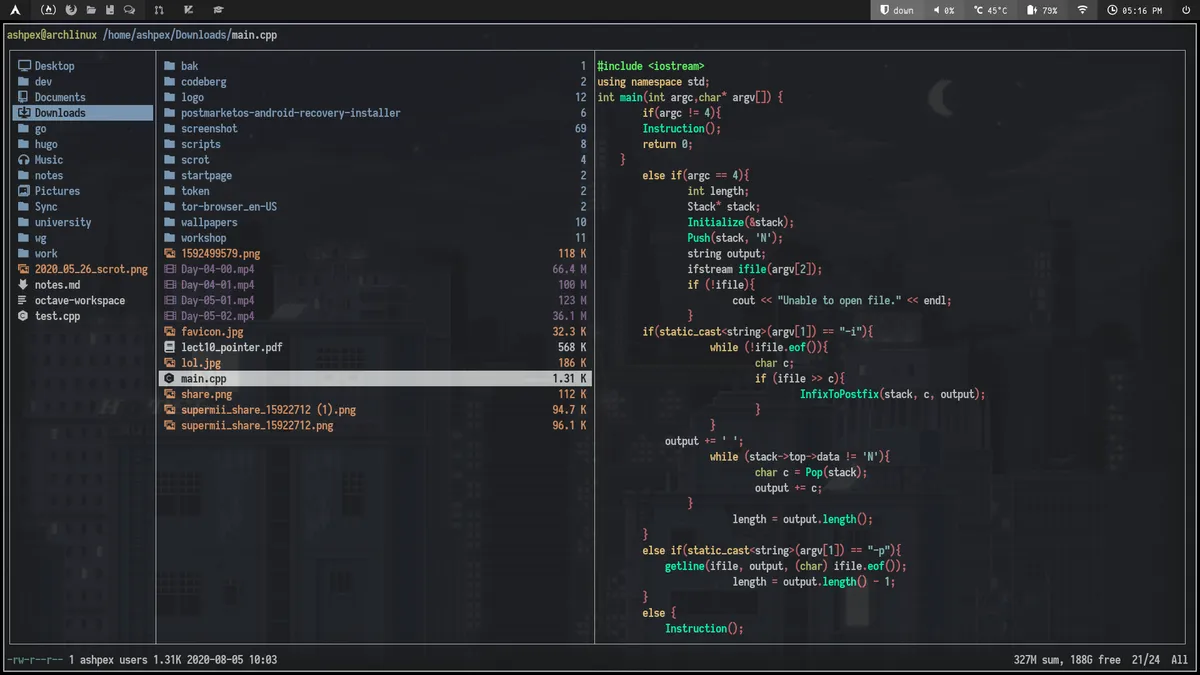

This is my personal config for the ranger file manager. Some basic information:
| OS | Arch Linux |
|---|---|
| Font | Iosevka 14 |
| Terminal | Termite |
| WM | i3 |
Ranger icons
Install
- First install a nerd font which can be found here: https://github.com/ryanoasis/nerd-fonts. After that, run the following command:
git clone https://github.com/alexanderjeurissen/ranger_devicons ~/.config/ranger/plugins/ranger_deviconsThen execute the following:
echo "default_linemode devicons" >> $HOME/.config/ranger/rc.conf# (or wherever your rc.conf is located).Configure spacing between icon and text:
In ~/.config/ranger/plugins/ranger_devicons, edit the following file __init__.py:
import ranger.apifrom ranger.core.linemode import LinemodeBasefrom .devicons import *
@ranger.api.register_linemodeclass DevIconsLinemode(LinemodeBase): name = "devicons"
uses_metadata = False
def filetitle(self, file, metadata): return devicon(file) + ' ' + file.relative_path
@ranger.api.register_linemodeclass DevIconsLinemodeFile(LinemodeBase): name = "filename"
def filetitle(self, file, metadata): return devicon(file) + ' ' + file.relative_pathIn line return devicon(file) + ' ' + file.relative_path, add or delete spaces in ' ' to adjust the spacing between the icons and your file/folder name.
Add syntax highlighting preview
Just install highlight package:
- Arch:
$ sudo pacman -S highlight- Ubuntu:
$ sudo apt-get install highlightThen reopen ranger.
Ranger configures highlighting in scope.sh. To use a specific theme, the HIGHLIGHT_STYLE variable should be set, for example: export HIGHLIGHT_STYLE=clarity.
Image preview
First, install python-ueberzug-git from aur by running this command:
yay -S python-ueberzug-gitIn your ranger config file (~/.config/ranger/rc.conf), add this line:
set preview_images_method ueberzug
File management
| Shortcuts | Description |
|---|---|
H | Show hidden files and folders. |
r | Open with <APPLICATION>. |
D | Delete the marked file or the selected files. |
<Space> | Selects the current file/folder. |
v | Marks all files and folders in the current directory. |
a | Edit the name of the file/folder by putting the cursor last. |
I | Edit the name of the file/folder by putting the cursor first. |
cw | Change the name of the file/folder. |
o | Sort current directory.oa to sort by time. osto sort by name size and so on. |
'<LETTER> | Jump to bookmark. |
m<LETTER> | Bookmarks the current directory. |
:bulkrename | Lets you bulk rename the selected files and folders by using your $EDITOR. |