


Folding@home is a distributed computing project started by Stanford University to help understand protein folding, misfolding, and related diseases. The project uses the idle processing resources of thousands of personal computers belonging to people that have installed the Folding@home software on their systems. In this post I will describe how to install and configure the Folding@home client software on Ubuntu server.
Software versions used in this post were as follows:
- Linux (ubuntu 18.04)
- fahclient_7.4.4_amd64.deb
So let’s get started…
Download and install
wget https://download.foldingathome.org/releases/public/release/fahclient/debian-testing-64bit/v7.4/fahclient_7.4.4_amd64.debsudo dpkg -i --force-depends fahclient_7.4.4_amd64.debThe package will prompt for initial setup information, user name, etc. Enter information or change as needed, and click OK.
The installer will finish and automatically start the Folding@home client. You can verify that the client is running using the following command:
sudo /etc/init.d/FAHClient statusfahclient is running with PID 30562You can now delete the installation Folding@home package fahclient_7.4.4_amd64.deb from your home directory, if desired.
Configure
Now that you have installed Folding@home. Now it’s time to configure Web control, Folding@home’s graphical interface. We need to remotely control our server headlessly - Accessible from everywhere.
Config file
First, stop your running Folding@home client:
sudo /etc/init.d/FAHClient stopThen use sudo and your favorite editor to append the following lines to /etc/fahclient/config.xml, which will grant access to the Web Control dashboard to a specific IP address. Unfortunately Web Control can only grant access to a single IP address. In this example we’ve chosen to grant access to the host with the IP address 0.0.0.0/0
Warning (Caution)
By doing this, you will allow anyone to access your Web Control dashboard if they have your server IP Address, so proceed with caution
<allow>127.0.0.1 0.0.0.0/0</allow><web-allow>127.0.0.1 0.0.0.0/0</web-allow>Finally, restart the Folding@home client:
sudo /etc/init.d/FAHClient startAllowing port
Last but not least, make sure that your Linux server doesn’t block ingoing request from certain port, which in this case is 7396.
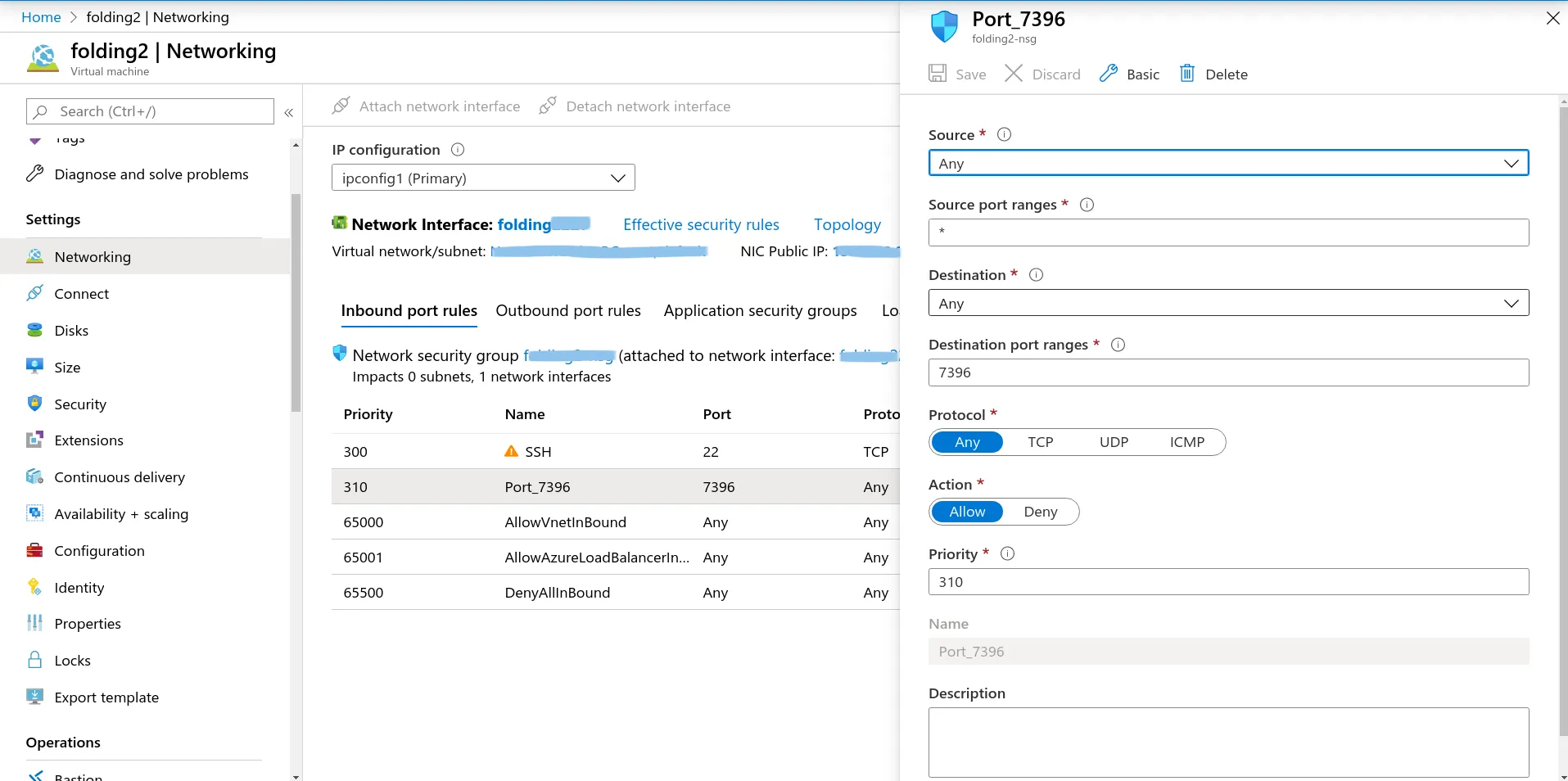
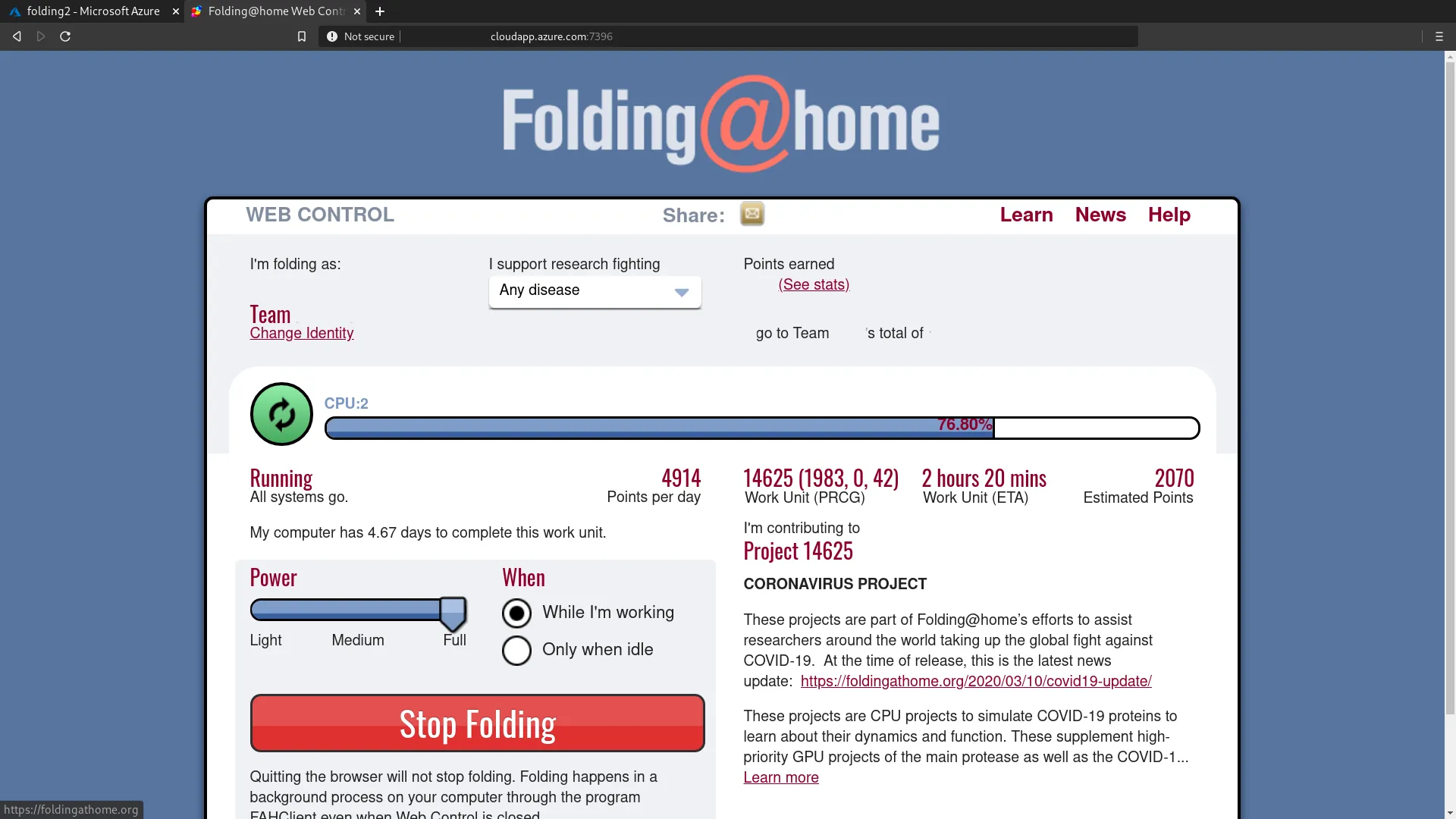
You should now be able to access the Folding@home Web Control dashboard at http://your-ubuntu-server-IP-address:7396/
Conclusion
There you have it. A few minutes of your time and you can easily have Folding@home up and running on your Ubuntu server. Let’s kick some Covid’s butts by contributing your computer’s resource to Foling@home.