

Why?
As you can notice, there are various tutorials in the net for the keyword “Arch installation”. As an Arch user, I will recommmend you to take a look at the Arch wiki for such an installation progess instead. So what is the purpose of this post? You may ask.
First of all, this post serves as a snippset for my arch installation. I don’t want to forget anything esstensial for my daily workflow incase I have to make a complete reinstall. Secondly, as personalized as this installation guide may seems, it may help new users in some ways.
Danger (Important)
This installation guide is very outdated. Always follow the official guide from the ArchWiki for porper up-to-date instructions.
Now let’s get started:
Warning (Caution)
/dev/nvme0n1 should be replaced with /dev/sda depending on different hardware.
Setting up
Setting up network
ip linkwifi-menuDisks partition
lsbkcgdisk /dev/nvme0n1| Partitions | Space | Type | Lable |
|---|---|---|---|
| /dev/nvme0n1p1 | 512M | ef00 | boot |
| /dev/nvme0n1p2 | 4G | 8200 | swap |
| /dev/nvme0n1p3 | remaining | 8300 | system |
Format partitions
1. EFI partition
mkfs.fat -F32 /dev/nvme0n1p12. Activate swap
mkswap /dev/nvme0n1p2swapon /dev/nvme0n1p23. System partition
mkfs.ext4 /dev/nvme0n1p3Mount and setting up
$ mount /dev/nvme0n1p3 /mnt$ mkdir /mnt/boot$ mount /dev/nvme0n1p1 /mnt/boot$ dfInstallation
Select mirror
$ nano /etc/pacman.d/mirrorlistPlace your host of choice on top:
Server = http://abcdxyz.example.com/archlinux/$repo/os/$archInstall base system
$ pacstrap /mnt base linux linux-firmware neovim$ genfstab -U /mnt$ genfstab -U /mnt >> /mnt/etc/fstab$ cd /mnt/etc$ cat fstabChroot into system: setting up timezone, passwd,…
$ arch-chroot /mnt$ ln -sf /usr/share/zoneinfo/ / /etc/localtime$ hwclock --systohc --utc$ nvim /etc/locale.gen` then uncomment `en_US.UFT-8`$ locale-gen$ echo "LANG=en_US.UFT-8" > /etc/locale.conf$ nvim /etc/hostname$ passwd$ useradd -g users -G wheel,storage,power -m ashpexor
localectl set-locale LANG=en_US.UTF-8Setting up Bootloader
$ pacman -S grub efibootmgr$ grub-install --target=x86_64-efi --efi-directory=/boot --bootloader-id=GRUB$ pacman -S os-prober$ grub-mkconfig -o /boot/grub/grub.cfgSetting up wifi
$ pacman -S networkmanager wireless_tools wpa_supplicant network-manager-applet$ exit$ rebootInstall yay
$ git clone https://aur.archlinux.org/yay.git$ cd yay$ makepkg -siEnable ntp
$ pacman -S ntp$ systemctl enable ntpd$ systemctl start ntpd$ timedatectl set-ntp 1Install DEs or WM.
Gnome
$ sudo pacman -Syu$ sudo pacman -S xorg xorg-server$ sudo pacman -S gnome$ sudo systemctl start gdm.service$ sudo systemctl enable gdm.service$ sudo pacman -S pulseaudio pulseaudio-alsai3
$ sudo pacman -S i3-gaps dunst dmenu picom feh mpd mpv ranger rofi scrot neovim xorg xorg-server pulseaudio pulseaudio-alsa alsa-utils nemo alacritty firefox git zathura$ yay polybar ranger-gitTip (Tip)
Install light package to control brightness. It works better than xbacklight and supports Wayland.
XFCE
sudo pacman -S xfce4 xfce4-goodiesConclusion
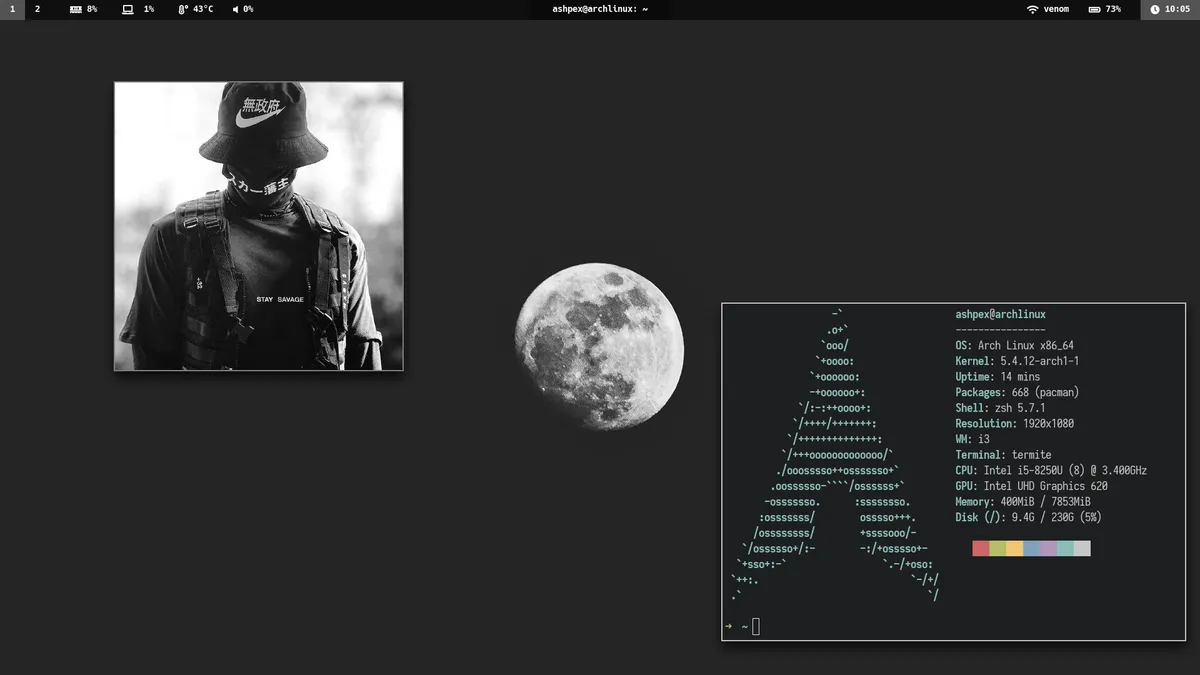
That’s pretty much the whole installation of your Arch Linux system. You can customize your OS more later such as things like ricing,… The fun has just begun. Here are some screenshots of my machine over time.


Troubleshooting
Wifi icon 1
Initial Requirements
-
Hosts
Check the configuration of your /etc/hosts file, a valid configuration looks like this:
Terminal window #<ip-address> <hostname.domain.org> <hostname> 127.0.0.1 localhost.localdomain yourHostname ::1 localhost.localdomain yourHostname -
Devices
-
You can identify your networking devices like this:
Terminal window lspci | grep -i net -
If your device is not listed, it is maybe an usb-device, so try this command:
Terminal window lsusb -
With the following command you can check the current state of all your network-devices:
Terminal window ip link
Installation of Required tools
-
Install the wpa_supplicant tools
Terminal window sudo pacman -S wpa_supplicant -
the wireless tools
Terminal window sudo pacman -S wireless_tools -
Install the networkmanager
Terminal window sudo pacman -S networkmanager -
Install the network-manager-applet aka nm-applet
Terminal window sudo pacman -S network-manager-applet -
Install gnome-keyring
Terminal window sudo pacman -S gnome-keyring -
Configuration
-
Make the networkmanager start on boot:
Terminal window sudo systemctl enable NetworkManager.service
- Disable dhcpcd
-
Since networkmanager wants to be the one who handles the dhcpcd related stuff, you have to disable and stop dhcpcd:
Terminal window $ sudo systemctl disable dhcpcd.service$ sudo systemctl disable dhcpcd@.service$ sudo systemctl stop dhcpcd.service$ sudo systemctl stop dhcpcd@.service
-
Enable wpa_supplicant, if you want to use your wireless connection:
Terminal window sudo systemctl enable wpa_supplicant.service -
Add your user to the network group:
Terminal window gpasswd -a <USERNAME> network -
Turn off your network interface controllers, in my case eth0 and wlan0:
Terminal window $ ip link set down eth0$ ip link set down wlan0
-
Now start wpa_supplicant:
Terminal window $ ip link set down eth0$ ip link set down wlan0 -
Now Start the networkmanager:
Terminal window sudo systemctl start NetworkManager.service
Finally, you should see the tray-icon on the top bar.
Sudoers 2
Logging as root
visudoAdd another line after this one
root ALL=(ALL) ALLWith: (by pressing O, then :X to save)
username ALL=(ALL) ALL